
What Quick setup is
In short: instead of going tab by tab turning protections on, you choose a package (one of the four presets: Basic, Online shop, Full or Maximum) and SeenSecure turns on everything it includes, with its recommended settings and already in “block”. It never turns anything off, never touches the rest of your settings, and “Undo” leaves everything as it was, firewall mode included.
- Where it is: SeenSecure menu → ⚡ Quick setup, right below the Dashboard. You can also get there from Firewall & WAF → Mode, with the card “Want to turn the protections on in one go?”.
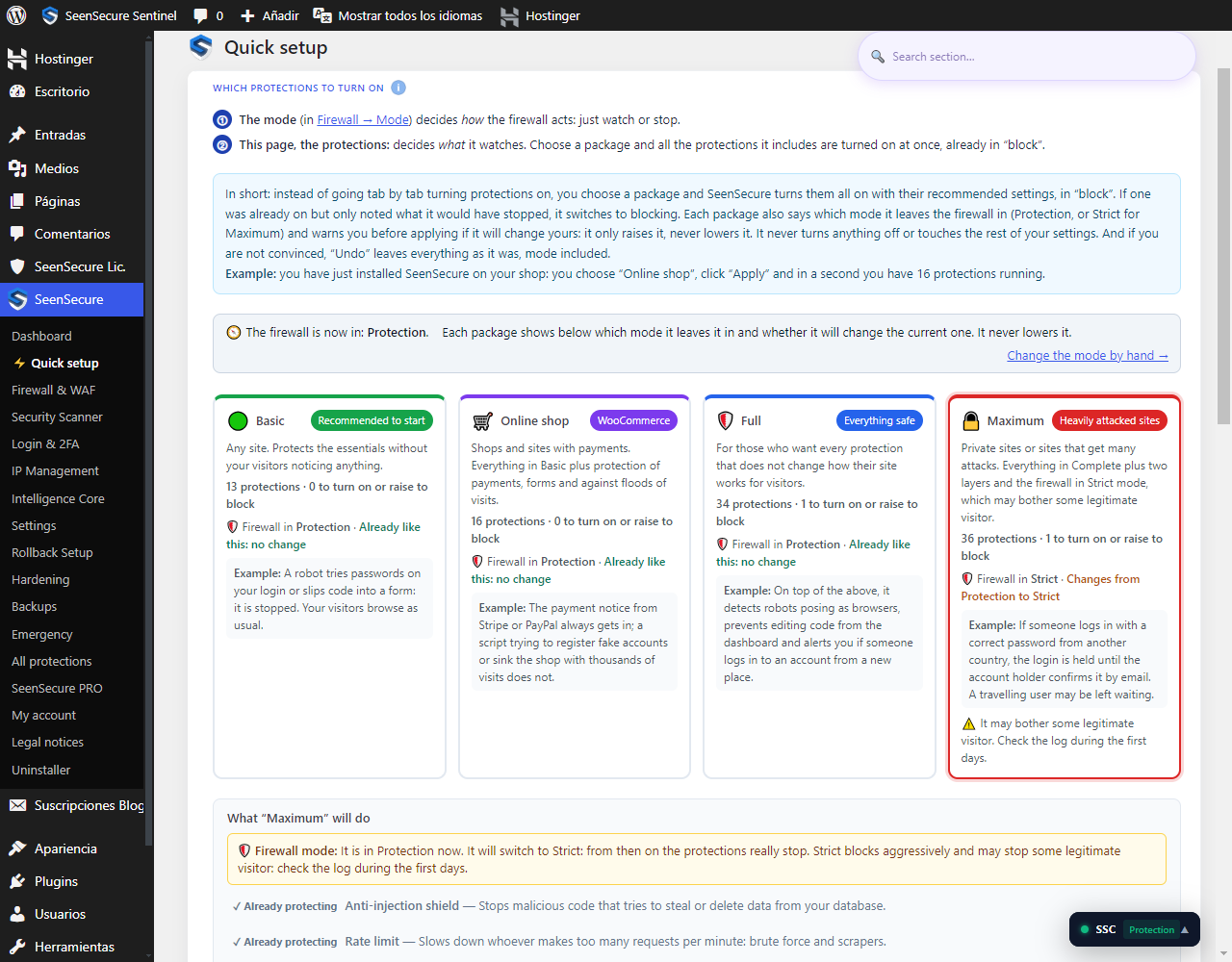
- Two different decisions: ① the mode (in Firewall → Mode) decides how the firewall acts: just watch or stop. ② The package (this screen) decides what it watches. Each package also tells you which mode it leaves the firewall in and whether it will change yours.
- Nothing changes until you click “Apply”. Clicking a card only shows the preview: which protections already work, which will be turned on and what will happen to the mode.
Example: you have just installed SeenSecure on your shop. You choose “Online shop”, click “Apply «Online shop»” and in a second you have 16 protections running and the firewall in Protection mode.
The four packages
They go from less to more: each package includes everything in the previous one. Online shop = Basic + 3; Full = Online shop + 8 in the Free version (+18 in PRO); Maximum = Full + 2 more layers and the firewall in Strict mode.
| Package | Who it is for | Firewall mode | Protections (PRO · Free) | Example |
|---|---|---|---|---|
| Basic Recommended to start | Any site. Protects the essentials without your visitors noticing anything. | Protection | 13 · 13 | A robot tries passwords on your login or slips code into a form: it is stopped. Your visitors browse as usual. |
| Online shop WooCommerce | Shops and sites with payments. Everything in Basic plus protection of payments, forms and against floods of visits. | Protection | 16 · 16 | The payment notice from Stripe or PayPal always gets in; a script trying to register fake accounts or sink the shop with thousands of visits does not. |
| Full Everything safe | For those who want every protection that does not change how their site works for visitors. | Protection | 34 · 24 | On top of the above, it detects robots posing as browsers, prevents editing code from the dashboard and alerts you if someone logs in to an account from a new place. |
| Maximum Heavily attacked sites | Private sites or sites that get many attacks. Everything in Complete plus two layers and the firewall in Strict mode, which may bother some legitimate visitor. | Strict | 36 · PRO only | If someone logs in with a correct password from another country, the login is held until the account holder confirms it by email. A travelling user may be left waiting. |
What each package turns on
The exact list, in the same order as the preview in the dashboard. Those marked PRO only exist in the PRO version; in Free, the package simply does not include them (no padlocks).
| Protection | What it does | Basic | Online shop | Full | Maximum |
|---|---|---|---|---|---|
| Anti-injection shield | Stops malicious code that tries to steal or delete data from your database. | ✓ | ✓ | ✓ | ✓ |
| Rate limit | Slows down whoever makes too many requests per minute: brute force and scrapers. | ✓ | ✓ | ✓ | ✓ |
| Login security | 5 password attempts, then a temporary block; nobody can log in with names like “admin”. | ✓ | ✓ | ✓ | ✓ |
| Anti-Bot | Blocks attack tools and robots that identify themselves as such. | ✓ | ✓ | ✓ | ✓ |
| Hide usernames | Prevents discovering the site's users, the first step to attacking the login. | ✓ | ✓ | ✓ | ✓ |
| File uploads | Checks what is uploaded to the site and rejects files with hidden code. | ✓ | ✓ | ✓ | ✓ |
| Sensitive files | Nobody can download backups or configuration files, or list your folders. | ✓ | ✓ | ✓ | ✓ |
| Hide the WordPress version | Attackers cannot see which version you use to look up its known flaws. | ✓ | ✓ | ✓ | ✓ |
| Security headers | Instructions to the browser so nobody can put your site inside another. Without the code one (CSP), which can break scripts. | ✓ | ✓ | ✓ | ✓ |
| Payment gateways always allowed | Notices from Stripe, PayPal, Redsys… are never blocked even if they do not arrive like a browser. | ✓ | ✓ | ✓ | ✓ |
| IP Lists | Applies your IP blacklist and whitelist. | ✓ | ✓ | ✓ | ✓ |
| Path scanning (404) | Blocks whoever tries many addresses that do not exist looking for weak spots. | ✓ | ✓ | ✓ | ✓ |
| WordPress file check | Compares your WordPress files with the official ones every day and alerts you if any changed. | ✓ | ✓ | ✓ | ✓ |
| Forms only from your site | Rejects form submissions that do not come from your own pages: automated scripts. | — | ✓ | ✓ | ✓ |
| Flood resistance (DDoS) | If thousands of visits arrive at once, the site asks for a quick check until it passes. | — | ✓ | ✓ | ✓ |
| CAPTCHA on login, registration and comments | A simple check that stops fake accounts and spam. | — | ✓ | ✓ | ✓ |
| Deceptive redirects | Prevents your site from being used to send people to scam pages. | — | — | ✓ | ✓ |
| Browser fingerprint | Tells a real browser from a program imitating one when submitting forms. | — | — | ✓ | ✓ |
| Dashboard code editor disabled | Even if someone steals an administrator account, they cannot insert code from the dashboard. | — | — | ✓ | ✓ |
| No PHP in the uploads folder | A malicious file uploaded as an image cannot be run. | — | — | ✓ | ✓ |
| Hide plugins and theme | Nobody can find out which plugins you use or their versions. | — | — | ✓ | ✓ |
| Strong passwords | New passwords must have 8 characters, a capital letter, a number and a symbol. | — | — | ✓ | ✓ |
| Pingbacks disabled | Prevents your site from being used to attack other sites. | — | — | ✓ | ✓ |
| Internal WordPress files closed | Nobody can directly open WordPress's internal PHP files. | — | — | ✓ | ✓ |
| Anti-Bot: robot signals PRO | Stops visits without a language or using a protocol no current browser uses. | — | — | ✓ | ✓ |
| Behaviour analysis PRO | Detects forms filled in at a speed impossible for a person. | — | — | ✓ | ✓ |
| Stop the persistent ones PRO | An IP that piles up many blocks in a row is set aside for a while before the site loads. | — | — | ✓ | ✓ |
| Threat intelligence PRO | Blocks IPs on public lists of known attackers and the anonymous Tor network. | — | — | ✓ | ✓ |
| Fake search engines PRO | Blocks whoever claims to be Google or Bing without being so. The real ones keep getting in. | — | — | ✓ | ✓ |
| Attacks spread by provider PRO | Slows down login attacks that spread their attempts across many IPs from the same provider. | — | — | ✓ | ✓ |
| New login alert PRO | An email when someone logs in to an account from a new device or country. | — | — | ✓ | ✓ |
| Leaked passwords PRO | Does not allow passwords that already appear in public leaks. | — | — | ✓ | ✓ |
| Logout after inactivity PRO | Administrators and editors are logged out automatically after 24 hours without using the dashboard. | — | — | ✓ | ✓ |
| Maximum 2 sessions per account PRO | The same account cannot be open in more than 2 places at once. | — | — | ✓ | ✓ |
| Early shield PRO | Stops at the entrance searches for sensitive files and attack patterns in the address. | — | — | — | ✓ |
| Session hijack protection PRO | Holds a login with a correct password from a new country until the account holder confirms it by email. | — | — | — | ✓ |
- With which settings: a protection that is off is turned on with the recommended values (the same Learning mode uses when it enables it), for example 5 password attempts and a 15-minute block in Login security.
- What you already had: if a protection was already on and blocking, the package does not touch a single one of its settings.
- Effects of applying: just like turning them on by hand, the
.htaccessrules, the headers and the browser fingerprint script are regenerated.
How to read the preview
Clicking a card shows “What “package” will do”: first the firewall mode box, and below it every protection with its status.
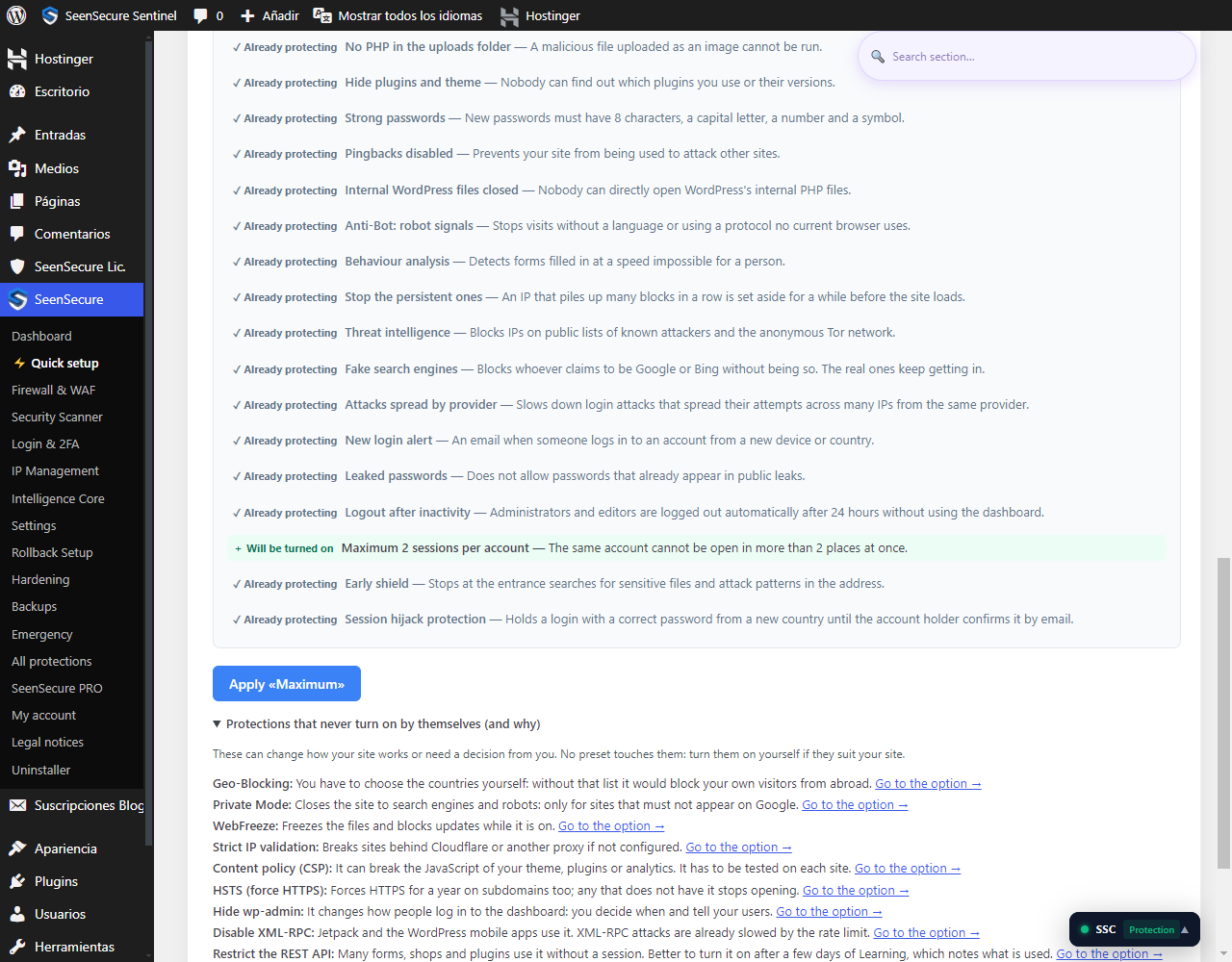
- ✓ Already protecting (grey): it is on and blocks, or asks for a challenge (CAPTCHA), which also protects. It is not touched.
- ↑ Switches to blocking (yellow, with “(right now it only notes what it would have stopped)”): it is on but only records. Only its action is changed to “block”; the rest of its settings stay as they are. Exception: in Fake search engines the challenge counts as “only notes”, because it does not stop the impostor.
- + Will be turned on (green): it is off and will be turned on with its recommended setting.
What happens to the firewall mode
Basic, Online shop and Full leave the firewall in Protection; Maximum, in Strict. There is one rule: a package only raises the mode, it never lowers it. Before applying, the card and the “Firewall mode:” box tell you which of these cases is yours:
- Firewall off: it turns it on in the package’s mode.
- A lower mode: “Changes from Monitor to Protection” (or from Protection to Strict with Maximum). From then on the protections really stop.
- The same mode: “Already like this: no change”.
- A higher mode: it stays as it is. For example, you apply Basic with the firewall in Strict: it stays in Strict.
- During the Learning period: the mode does not change. The protections are left ready in “block” and start stopping when, at the end of Learning, you activate protection.
You can change the mode by hand whenever you want in Firewall → Mode (“Change the mode by hand →” on the same screen).
Step by step
- Open SeenSecure → ⚡ Quick setup. At the top you see the firewall’s current mode.
- Click the card of the package that suits your site. Nothing changes yet: only the preview opens.
- Read the “Firewall mode:” box and the list. Green and yellow are what will change.
- Click “Apply «package»”. You see “Done: N changes applied (protections and, if needed, the firewall mode). Reloading…” and the page reloads with everything “✓ Already protecting”. If everything was already there, you see “There was nothing to change…” and nothing is saved.
- During the first days, look at the Traffic Log: every block says which protection did it and why.
Undo
After applying, the button “↩ Undo “package” (date and time)” appears. Before changing anything, SeenSecure saves how every setting it is about to touch was; “Undo” puts it back exactly like that: it turns off what was turned on, puts “only notes” back where it was, restores the firewall mode and switch, and regenerates the .htaccess and the headers. You see “Undone: everything is back as it was. Reloading…” and the button disappears.
- Only the last application is saved. If you apply Basic and then Full, “Undo” takes you back to how you were just before Full (with Basic already on), not to the beginning.
- What you change by hand afterwards: if you touch one of those protections after applying, “Undo” also puts it back to how it was before the package.
- The protections the package did not touch (the ones already protecting) stay the same.
What never turns on by itself (and why)
Some protections can change how your site works or need a decision from you. No package touches them, not even Maximum: they are in the drop-down “Protections that never turn on by themselves (and why)”, each with its “Go to the option →” link.
- Geo-Blocking: PRO You have to choose the countries yourself: without that list it would block your own visitors from abroad.
- Private Mode: PRO Closes the site to search engines and robots: only for sites that must not appear on Google.
- WebFreeze: PRO Freezes the files and blocks updates while it is on.
- Strict IP validation: PRO Breaks sites behind Cloudflare or another proxy if not configured.
- Content policy (CSP): It can break the JavaScript of your theme, plugins or analytics. It has to be tested on each site.
- HSTS (force HTTPS): Forces HTTPS for a year on subdomains too; any that does not have it stops opening.
- Hide wp-admin: It changes how people log in to the dashboard: you decide when and tell your users.
- Disable XML-RPC: Jetpack and the WordPress mobile apps use it. XML-RPC attacks are already slowed by the rate limit.
- Restrict the REST API: Many forms, shops and plugins use it without a session. Better to turn it on after a few days of Learning, which notes what is used.
- Block plugin installation: It would stop you installing or updating plugins and themes from the dashboard.
- 2FA required for everyone: Each user has to register their phone: let them know before turning it on.
- File integrity (FIM): It needs a “baseline” that accepts your files as they are now. Do it yourself when you are sure the site is clean; on big sites the first scan takes a while.
- Malware scanner: It changes nothing on your site, but the full scan uses resources: run it yourself when it suits you.
In the Free version the list has 9: the 4 marked PRO do not exist there.
The Protection Network does not change either: if you accepted it in the wizard it stays on, and if you turned it off the packages respect that decision.
Free and PRO
- Free: Basic (13), Online shop (16) and Full (24). Each package only turns on protections of the free version.
- PRO: all four packages. Full adds 10 PRO protections (Anti-Bot robot signals, Behaviour Analysis, Threat Intelligence, Fake search engines, New login alert, Leaked passwords…) and Maximum appears with the Early Shield and Session Anti-Hijacking.
- If your PRO licence does not include a protection, the package skips it: it is neither listed nor counted.
Common problems
“There was nothing to change”
Every protection in the package was already on and blocking, and the firewall was already in that mode. Nothing was saved and “Undo” does not appear.
After applying, a legitimate visitor cannot get in
Look up their IP in the Traffic Log: you will see which protection stopped them. You can add them to the allowlist (IP Management), turn off just that protection in its tab, lower the mode to Protection in Firewall → Mode, or click “Undo”.
A travelling user is left waiting at login (Maximum)
That is Session Anti-Hijacking: they logged in with the correct password from a new country and the login is held until the account holder confirms it from the email they receive. As soon as they confirm, they get in.
The firewall mode did not change
Either you are in the Learning period (the package does not touch the mode) or the firewall was already in an equal or stricter mode (a package never lowers it).
I do not see the “Maximum” card
Maximum is PRO only.
I do not see the “Undo” button
You have not applied any package yet, you already undid it, or the last application changed nothing.