
🧠 Intelligence Core: how the protections decide together
In a nutshell
Your site is protected from day one. All SeenSecure protections share what they see, and six “intelligences” (like six guards, each an expert in one thing) decide together what to do with each visitor: let them through, just keep an eye on them, or close the door.
The intelligences come only observing: they watch and log, but they do not block anyone. The other protections already protect you from day one. When you want them to decide too, turn on the “Intelligences” switch.
Example: someone tries passwords on your login page from another country. One protection stops it, another sees it behaves like a program, and together they decide to close only the login page to them for a while. Your customers keep buying as usual.
What you will see in your dashboard
The core drawing
In SeenSecure → Intelligence Core you will see this drawing move with what really reaches your site: green dots (in favour or allowed) and red dots (against or stopped) travelling to the centre.
The intelligence feed
Below the drawing, a list with what each intelligence says and the common decision, in plain words: why it trusts an IP or not, what that IP did and what was decided.
In the details of each visit
In SeenSecure → Firewall & WAF, tabs Traffic Log and Live Monitor: when you open a visit you will see the section “What the intelligences analysed”, with each one’s opinion and the final decision.
Animated, sped-up example. In your dashboard, the same drawing moves with what really reaches your site. Red: against or stopped. Green: in favour or allowed.
The four possible responses
👁️ Just watch
The most common. What it does is logged and it is not bothered.
🧩 Challenge
It is asked to prove it is a person.
🔒 Close one part
Only the area it attacks (for example the login page or the forms). The rest of the site stays open to it.
⛔ Block the whole site
Only for a clear attack. If it attacks again after a block, the next one lasts longer: 1 day, 7 days, 30 days and 90 days.
If you have a problem
A real customer cannot get in
- Go to SeenSecure → Firewall & WAF (1) and open the Traffic Log tab (2). Find their visit by time or by IP (3).
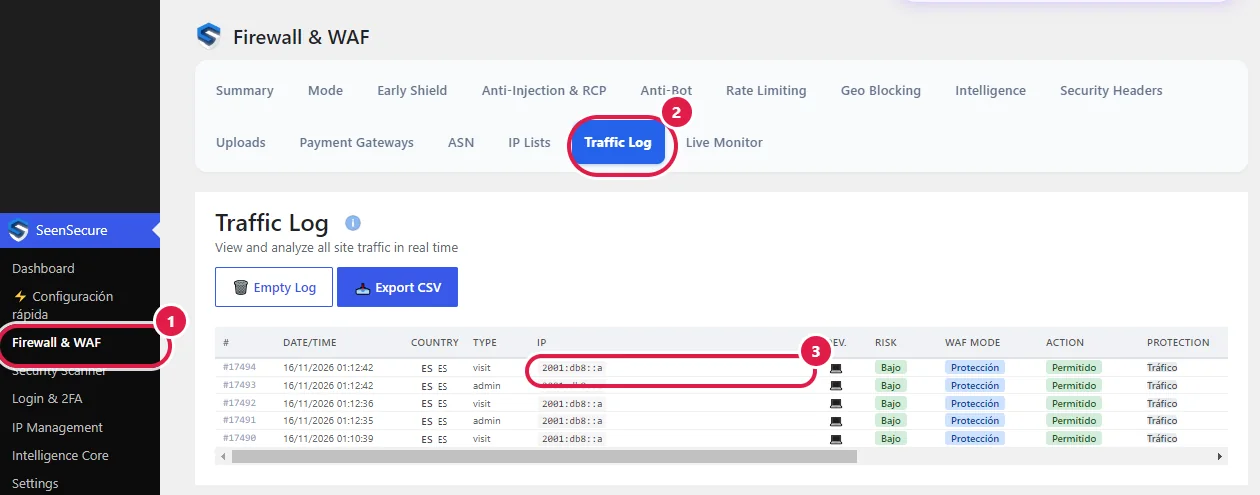
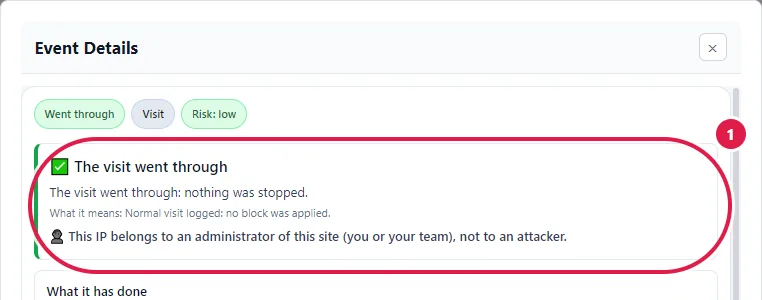
- Double-click the row (or right-click → 🔍 View Details). On a phone, tap it twice. At the top you will see whether the visit was stopped or the IP blocked, and why (1).
- If it is a trusted person, scroll down to the buttons and click ✅ Whitelist (1). The intelligences never block a whitelisted IP.
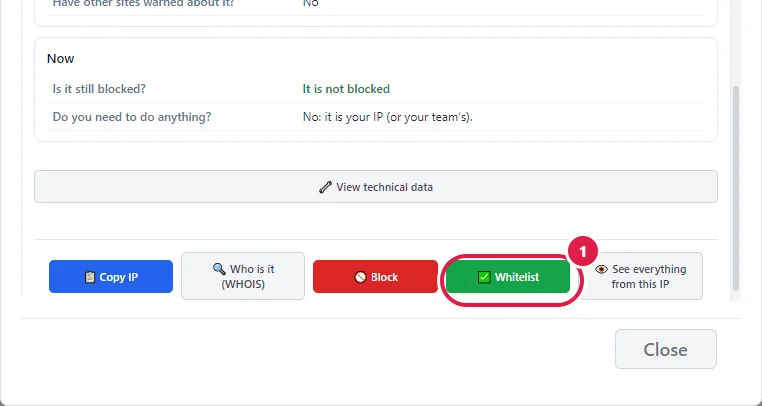
It takes 1 minute. To undo it, remove the IP from the whitelist in SeenSecure → IP Management. Do not deactivate the plugin: your site would be left unprotected.
I am not sure whether to turn the intelligences on
- They come only observing: they watch and log, but they do not block anyone. The other protections (firewall, Anti-Bot, login…) already protect you.
- When you want them to decide too, go to SeenSecure → Intelligence Core (1) and turn on the INTELLIGENCES switch (2). When on, they never block administrators, the whitelist, verified search engines or payment gateways.
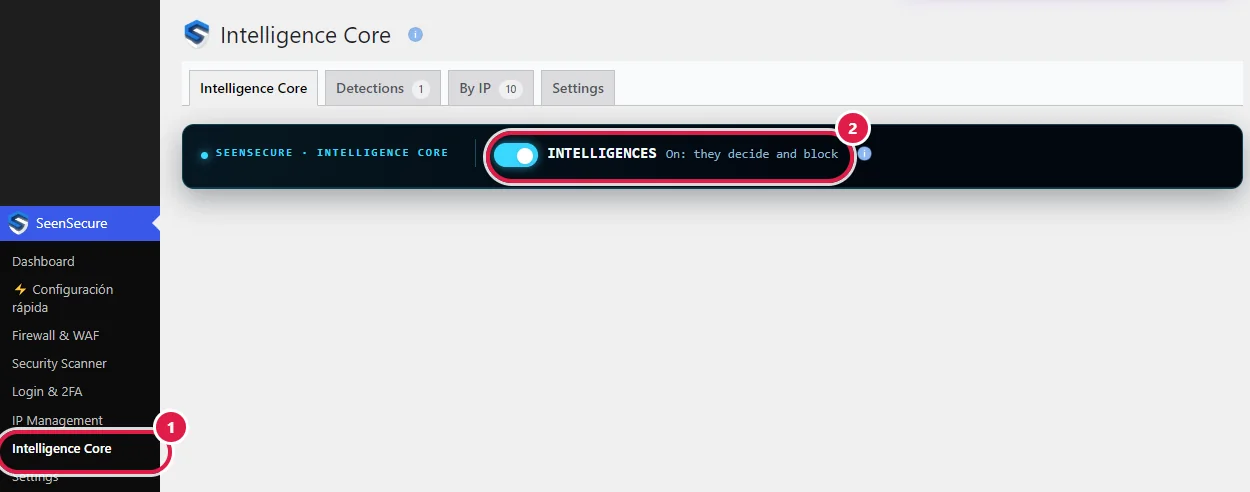
To make them only observe again, turn the same switch off.
I see my own IP in the log as stopped
- Open the visit (double-click the row). If it is you, the details will say “This IP belongs to an administrator of this site” (1).
- The intelligences never decide anything about an administrator’s IP. If a protection stopped one of your visits (for example because of an odd link), you have not been blocked.
If you are ever locked out, use the emergency link you received by email.
🔧 For experts
Technical sheet
| Where it is | SeenSecure → Intelligence Core; tabs Intelligence Core, Detections, By IP and Settings. |
|---|---|
| “Intelligences” switch | On a new installation it is off: the intelligences only observe and log. When on, the common decision can challenge, close one area or block. |
| What it respects | The WAF mode (in Learning or Monitor it does not block) and the emergency switch. |
| Never acts on | Administrators, the whitelist, search engines with a verified identity, payment gateways and IPs you have already decided on yourself. |
| If an IP comes back | The block goes up one step: 1 day, 7 days, 30 days and 90 days. Never forever automatically. |
| Where each decision is shown | Traffic Log and Live Monitor → visit details → “What the intelligences analysed”. |
| Behind Cloudflare or a proxy | It works with the visitor’s real IP. How to set it up: Firewall & WAF. |
| Plan | SeenSecure PRO. |
The three layers
Sub-layers (outer ring)
Each specific thing a protection can notice. For example, Login & 2FA has “Failed password”, “User that does not exist”, “Login with 2FA”…; Anti-Bot has “Automated browser”, “404 scanner”, “Verified search engine”…
Protections (middle ring)
WAF, Anti-Bot, Login & 2FA, CAPTCHA, Rate Limiting, XML-RPC, Anti-enumeration, Virtual patch (CVE), Threat lists, Campaigns, Anti-Hijack, Behaviour analysis, Network list and Normal visits. When a sub-layer raises something, the protection writes it to a shared log.
Intelligences (inside) and common decision (centre)
Six intelligences read that log, each gives its opinion on its own area, and the common decision brings the six opinions together and decides.
The six intelligences
⚔️ Attacks & campaigns
Direct attacks on the site: injections stopped by the WAF, exploitation of vulnerabilities (CVE), attack tools, scanners, going over request limits, hunting for usernames, threat lists and Tor, and being part of a campaign of many IPs. On a clear attack, it decides straight away.← WAF, Virtual patch, Anti-Bot, Rate Limiting, XML-RPC, Anti-enumeration, Threat lists, Campaigns, CAPTCHA
🧠 Behaviour
How an IP browses: like a malicious scanner, suspiciously, or like a program.← Behaviour analysis
📜 Reputation
The memory of each IP: whether it came before and whether it was punished. If it attacks again, the punishment goes up a step.← The common decision itself (its history)
🛰️ Protection Network
Whether other sites protected by SeenSecure have already seen that IP attack.← Network list
👤 Accounts
What happens to accounts: failed passwords, users that do not exist, reserved names (admin…), held logins, stolen sessions or sessions that change country, stolen passwords and “It wasn’t me”.← Login & 2FA, Anti-Hijack, XML-RPC
✅ Legitimacy
What speaks in favour: search engines with verified identity, link previews, passed challenges, logins with 2FA, trusted devices and normal-looking visitors. It never cancels a clear attack, but it can lower the response by one step.← Anti-Bot, CAPTCHA, Login & 2FA, Normal visits
Who it never blocks
- It never blocks administrators, the whitelist, search engines with verified identity or payment gateways.
- If you already decided about an IP (you blocked it or whitelisted it), your decision wins.
- It also has safeguards so as not to bother legitimate visitors.
The “Intelligences” switch
Examples
📝 A real search engine
Bingbot requests many pages that do not exist. Anti-Bot logs “404 scanner” (against) and “Verified search engine” (in favour). Legitimacy says it is a search engine with verified identity: nobody is blocked.
📝 SQL injection
An IP sends an SQL injection. The WAF stops it and logs it. Attacks & campaigns sees a clear attack: blocked on the whole site.
📝 Passwords from one IP
One IP tries several passwords on an account that exists and also goes over the login limit. Accounts and Attacks agree: only the login is closed to that IP; the rest of the site stays open to it.
Frequently asked questions
What are these intelligences? Should I turn them on?
They are six guards that agree before blocking anyone. They come only observing: they watch and log, but they do not block anyone. When you want them to decide too, turn on the “Intelligences” switch; they never block administrators, the whitelist, verified search engines or payment gateways. On or off, the other protections already protect you.
Why is an IP that looks suspicious to me not blocked?
Because what it did is not enough to be sure. The details of its visit say, in plain words, what each intelligence thought and why it was decided only to watch. If you want, you can block it yourself with the 🚫 Block button: your decision wins.
What is shared with other sites (Protection Network)?
Only clear attacks, and never those of administrators, the whitelist, verified search engines or your own server. For each attack it sends: the attacking IP, its country, which protection stopped it and what kind of attack it was, the method and the address requested (with personal data in the address replaced by “[oculto]”), the browser identification the attacker gave, and the time. It never sends: what is typed into forms, passwords, cookies, authorisation headers, names or emails of your users and customers, or your site’s content. More in Protection Network.
Does it work with Cloudflare or a proxy?
Yes: they work with the visitor’s real IP. How to set it up, in the Firewall help.
💬 Still not fixed?
Write to us (support form)We will reply by email as soon as possible.
Before writing, have at hand: what happened, when, and a screenshot of the message. Do NOT send us passwords or the address of your login page.
Related
🧠 What is it and why do you need it?
Normal protections look at one IP at a time. Attackers know this and spread the attack across hundreds of IPs (networks of infected computers or proxies), so that none stands out.
Attack Intelligence looks at all IPs together. If many different IPs try to log into the same account, or a few IPs try many accounts, it groups them as a campaign and keeps every attempt as evidence.
📋 Summary
It joins loose attempts that, together, are an organised attack.
📝 Real example
88 IPs from 41 countries tried the password of the same account over 6 days, each only 1 or 2 times. None reached the login lockout; here they showed up as a single campaign.
It respects the WAF mode: with the WAF off it analyses nothing; in Monitor or Learning mode it only logs. Included in SeenSecure PRO.
✅ It works on its own: nothing to do
📋 Summary
With SeenSecure PRO active, Attack Intelligence starts working on its own: every family comes enabled in "Log only", it analyses in the background and keeps the evidence. There are no rules, thresholds or lists to configure.
📝 Example
You install SeenSecure on Monday. On Wednesday, 30 IPs from 12 countries try to log into the "admin" account, once or twice each. Without touching anything, on Thursday you see the campaign in the Detections tab, with every attempt as evidence.
- It learns from real attacks: each family's rules come from the study of real attacks against WordPress sites and are checked against legitimate traffic first, so it warns you about attacks and not about your customers.
- It works in the background every 5 minutes with the attempts of the last 7 days, not on every visit: it does not slow your site down.
- You only decide one thing, if you want: what each family does when the campaign is certain (block, protect the account…). If you change nothing, it only logs and blocks nobody.
- It builds on what you already have: it uses what the other protections record (login, firewall, Anti-Bot, WAF, forms). It works without Geo-Blocking: the country only raises or lowers the confidence.
⚖️ Attack Intelligence vs Behaviour Analysis: what is the difference?
Both protections review your site's traffic “afterwards”, every few minutes, but they ask different questions. They are easy to confuse, so here it is step by step.
🕵️ Behaviour Analysis: “what is THIS IP doing?”
It looks at each visitor separately, like a guard following one person around the shop: which pages it requests, whether it looks for files that do not exist, whether it tries to get the user list, whether its requests arrive at machine-like intervals… With all that it gives it a score. A high score means that IP is a scanner or a malicious bot.
🧠 Attack Intelligence: “what are they doing ALL TOGETHER?”
It looks at all IPs together, like the head of security watching every door camera at once and noticing that 50 different people are trying the same lock. Each one alone looks harmless; together they are an organised gang. We call that a campaign.
Why you need both
Attackers know normal protections watch each IP. So they do two different things:
- One computer doing many odd things (looking for /.env, /wp-config.php.bak, testing vulnerable plugins…). Behaviour Analysis catches that, because that IP alone already misbehaves.
- Hundreds of computers each doing very little (one or two passwords each, from different countries, spread over days). No IP reaches any limit and Behaviour Analysis sees nothing odd in any of them. Only Attack Intelligence uncovers it, because it joins the loose attempts and sees the pattern.
An example with both at once
Imagine your online shop. Over one week:
- An IP from the Netherlands requests 40 non-existent pages looking for backups. Behaviour Analysis: “this IP is a malicious scanner” → blocks it for 24 h.
- At the same time, 88 IPs from 41 countries try the password of the account “pepe”, each only once. Behaviour Analysis: each IP made a single request, nothing suspicious on its own. Attack Intelligence: “88 IPs against the same account = campaign #8” → keeps the evidence and, depending on the mode you choose, blocks the 88 IPs or protects Pepe's account.
How they work together
- When an IP takes part in a campaign, Behaviour analysis takes it into account, with the reason “tried to log in to account X together with other IPs (campaign #N)”. That way an IP that also does other odd things is blocked sooner.
- Each one has its own mode (log only or act) and both respect the WAF mode: in Monitor or Learning they only log.
- Neither ever blocks administrator or allowlisted IPs.
| Behaviour Analysis | Attack Intelligence | |
|---|---|---|
| Looks at | Each IP separately | All IPs together |
| Asks | Does this IP behave like a malicious bot? | Are many IPs cooperating in the same attack? |
| Catches | Scanners, bots looking for flaws | Distributed brute force, password spraying, slow attacks, impossible country changes |
| Result | A score per IP | A campaign with all its IPs and evidence |
| Response | Block that IP or log only | Log only, block the IPs (hours or 90 days) or protect the targeted account |
⚙️ Campaigns tab: settings per family
The campaign families (F1 to F8) are no longer switched on one by one: the Intelligences switch in the Intelligence Core tab turns them all on or off at once. Their rules are still fixed and tested with real attacks.
The 4 indicators (Active, Watching, Detected and Contained) are now in the Detections tab.
F1 — Account access
Watches login attempts on any login form: wp-login.php, WooCommerce “My account” and similar forms with username and password. It joins two sources: attempts the firewall stopped before reaching WordPress and wrong passwords recorded by the login.
The passwords tried are never stored: only the username typed, IP, country, time, browser and which protection acted.
What it does when it detects a campaign (mode)
It only acts when it is sure it is an organised attack; otherwise it only logs.
- Log only: keeps the campaign and the evidence, without blocking. Example: you see the 103 attempts against “pepe”; nobody is blocked by this section.
- Block IPs for a few hours (1 h, 6 h, 24 h or 7 days): every IP of the campaign is blocked for that time; if it attacks again after it expires, it is blocked again. Example: the 88 IPs attacking “pepe” cannot open your site for 24 hours.
- 90-day ban: every IP is blocked for 90 days with the reason “campaign #N”. If it attacks again afterwards, another 90 days. Never forever automatically; you can remove it earlier in IP Management.
- Protect the targeted account: it does not block IPs; for the chosen time, logging into that account from a new device requires email confirmation even with the right password (with 2FA active, 2FA already asks). XML-RPC is rejected for that account. It is the most effective response against attacks with hundreds of IPs. Example: even if the attacker guesses “pepe”'s password, they do not get in; Pepe, from his usual computer, logs in normally.
Weak hints are not saved as a campaign, so you are not alerted about coincidences.
Fast brute force
Several IPs against the same account in a short time. Example: within a few minutes, three different IPs fail with the account “ana” → campaign.
Slow brute force
The same attack, but spread over hours or days to go unnoticed.
Impossible country change
The same account receives attempts from different countries within a very short time. A person does not change country that fast: it is a distributed attack.
Password spraying
The attacker tries a common password (“123456”, “Summer2026”) on many different accounts.
Exclusions
Accounts not watched and IPs or ranges that do not count, one per line (comments with # allowed). IPs can be exact (203.0.113.10) or a CIDR range (198.51.100.0/24, IPv6 too). Administrator IPs and the Whitelist are already excluded automatically.
F2 — User enumeration
What attackers do: before trying passwords they need your account names. WordPress unintentionally reveals them if asked the right way: /?author=1 redirects to the author page with its name, and the /wp-json/wp/v2/users API returns the list. Attackers ask from many IPs at once so none draws attention.
📋 Summary
It watches that many computers do not try to harvest your site's usernames.
📝 Real example
At 19:57, 29 IPs from 19 countries requested /?author=1, /?author=2… and the users API with the same program. In 2 minutes they knew the account names.
What it detects
- Several different IPs look for your account names within a short time.
- Plugins that expose users count too:
/wp-json/…/users,/members(BuddyPress),/customers(WooCommerce),/subscribers(newsletters) and the users sitemapwp-sitemap-users-1.xml. - The same tool spread across many machines is also recognised.
- Not counted: administrators, the whitelist and the server itself.
- A single IP trying it is stopped by Behaviour Analysis; this family sees the many IPs together.
Modes: log only, block the IPs for some hours or add them to the blocklist.
F3 — XML-RPC attacks
What attackers do: xmlrpc.php is an old WordPress door for external programs (the mobile app, some editors). It can check a username and password, and with system.multicall try hundreds of passwords in a single request. Attackers use it from many IPs to dodge the login attempt limit.
📋 Summary
It watches that many computers do not try passwords through the XML-RPC back door.
📝 Real example
At 02:55 and 02:58, four IPs from the Philippines, Korea, Russia and China tried a username and password with wp.getProfile.
What it detects
- Several different IPs try usernames and passwords via XML-RPC within a short time.
- Any request that tries credentials counts.
- Not counted: Jetpack, pingbacks, administrators, the whitelist and the server itself.
Modes: log only, block the IPs for some hours, blocklist, or close XML-RPC for some hours: while it lasts, xmlrpc.php answers nobody, so the attacker's new IPs are useless too. Your site and the normal login keep working; only the WordPress mobile app cannot connect meanwhile.
F4 — Scanning and reconnaissance
What attackers do: they use programs that sweep thousands of sites with the same list of paths, looking for forgotten things: backups (/backup, /old, .zip or .sql files), old WordPress installs (/wp, /wordpress, /new), panels (/phpmyadmin, /administrator) or secret files (/.env, /.git). They split the list across many machines so none reaches a limit.
📋 Summary
It uncovers several machines sweeping your site with the same search list.
📝 Real example
10 IPs from 6 countries requested /backup, /old, /new, /bk, /wordpress and /administrator over 3 days: the same program looking for where WordPress was installed.
What it detects
- Several IPs request the same paths that do not exist on your site.
- Only paths that do not exist on your site count. If
/homeor/adminare real pages on your site, they do not count. Secret files (.env,.git,wp-config…) always count. - Not counted: verified crawlers (Google, Bing…), administrators, the whitelist and the server itself.
- A single IP looking for many paths is stopped by the 404 scan and Behaviour Analysis; this family sees the spread-out scan.
Modes: log only, block the IPs for some hours or add them to the blocklist.
F5 — An IP that comes back day after day
What attackers do: some do not attack all at once. They come back every day or two with very few requests (one login attempt, one file search) so no alarm goes off, waiting for you to install something vulnerable or lower your guard. The normal log keeps only a few days and misses it; this family remembers 14 days with one row per IP and day.
📋 Summary
It uncovers the IP that keeps coming back to do something suspicious, even if it does very little each day.
📝 Real example
An IP from Australia tried /wp-login.php on Monday, Wednesday and Friday, only once each day.
What it detects
- The same IP keeps doing blocked or suspicious things on different days.
- Not counted: normal visits, verified crawlers (Google, Bing…), administrators, the whitelist and the server itself.
Modes: log only, block the IP for some hours or add it to the blocklist.
F6 — Exploitation from several IPs
What attackers do: when they find (or think they find) a specific flaw, they hit it again and again: SQL injection to dump the database, XSS to inject code into your pages, code execution, reading server files, exploits for known plugin vulnerabilities… If one IP fails, they repeat it from others.
📋 Summary
It joins the attacks the WAF already stopped one by one and reveals they are the same person insisting from many IPs.
📝 Example
At 03:10 SQL injections arrive from Brazil, India and Russia against the same page. The WAF stops them one by one; here they appear together as a single attack aimed at your site.
What it detects
- The same type of attack from several IPs within a short time.
- Only what the WAF already confirmed counts: SQL injection, XSS, remote code execution, LFI/path traversal, SSRF, deserialisation, Web Cache Deception, CVE exploits and probes for vulnerable scripts. It guesses nothing.
- Not counted: enumeration and XML-RPC (they are F2 and F3), administrators, the whitelist and the server itself.
Modes: log only, block the IPs for some hours or add them to the blocklist.
F8 — Form spam from several IPs
What attackers do: they send the same advert (a website, a Telegram or WhatsApp account, a reply-to email) to your contact forms and comments from dozens of IPs. Each IP sends one or two messages, so no per-IP protection is triggered. Crude bots (the ones that do not behave like a browser) are already stopped by SeenSecure; this family is for the ones that imitate a person.
📋 Summary
It looks at what each message advertises, not at the IP: if the same thing arrives from many IPs and countries, it is a spam campaign.
📝 Example
In one afternoon 15 “improve your website's SEO” messages arrive from 11 countries. Each one is worded differently, but they all carry the link to spam.example: it is a single campaign.
What it detects
- The same link or contact (a website, a Telegram, WhatsApp or Instagram account, a reply email) from several IPs.
- The same text, even with some words changed, from several IPs and countries.
- Not counted: messages that advertise nothing (five people writing “Hi, I'd like more information” is not spam), reference websites (Google, YouTube, Wikipedia…), the links and emails shown on your own website (your Instagram, your WhatsApp, your email: your customers quote them), the sender's own email, logged-in users, administrators, whitelist, IPs that have logged in successfully and your own server.
- Privacy: messages are not stored. Only what they advertise (emails masked) and a numeric summary of the text are kept, and deleted after 14 days.
Forms it watches
It can reject messages in Contact Form 7, WPForms, Gravity Forms, Elementor Pro, Fluent Forms, Formidable, Ninja Forms and WordPress comments, with nothing to configure. Any other form on your site (from your theme or another plugin) is watched too, but only logged.
Together with the CAPTCHA
The SeenSecure CAPTCHA (Login security → CAPTCHA) protects login, registration, password recovery and comments with a challenge a bot cannot solve. Both protections add up:
- Comments: if the CAPTCHA is enabled for comments, bots can no longer comment. F8 also stops the spam that gets past the CAPTCHA, for example spam sent by people paid to solve them, and groups it as a campaign.
- Contact forms (Contact Form 7, WPForms, Gravity Forms, Elementor Pro, Fluent Forms, Formidable): the CAPTCHA covers them too if you enable the “Contact forms” box (off by default). With it or without it, F8 stops campaigns.
- Layer 2+ (Human behaviour): with its scope set to “Any form on the site”, it also stops bots that send to these forms without opening the page. See Layer 2+ on contact forms.
Modes: log only (default), reject the messages (the sender sees “The message could not be sent”; nobody is blocked and your site stays open to everyone), block the IPs for a few hours or add them to the blacklist.
It is all connected: see how SeenSecure protects your forms with several layers at once.
🎯 Confidence: when it acts and why it sometimes only watches
Each campaign has a confidence: how sure SeenSecure is that it is an organised attack and not a coincidence.
- With enough confidence the campaign is saved and you see it in Detections.
- With high confidence, it acts.
- With a weak hint it only watches. That way a weak hint never affects a real user.
Confidence goes up the clearer it is that the attack is organised, and is held back when what was seen could also be a normal person (for example, a phone changing IP).
📝 Real example
👀 Where you see it
In the Traffic Monitor, when you open a row of the campaign, “What the campaign decided about this IP” tells you the exact reason.
Why a campaign only watches an IP
- Confidence still low: it will act as soon as the campaign is clear.
- The family is set to "Log only": that is the default. Change it in the Campaigns tab if you want it to act.
- The WAF is in Learning or Monitor mode: in those modes everything is logged and nothing is blocked, here too.
- Attack Intelligence is turned off (Settings tab, or the emergency switch).
- It is an IP that is never touched: administrators, the Whitelist or the server itself. Or the analysis has not run yet; it runs every 5 minutes.
👤 How does it tell a real user who makes mistakes apart?
- A single IP, however many times it fails, is never a campaign (the login lockout handles that).
- Failures from an IP that has already logged into that account successfully do not count.
- If the account logs in successfully within the next 30 minutes from the same country (for example, the phone changed IP), those failures are considered the owner's.
- Administrator and allowlisted IPs do not count.
- Few IPs from the same country give limited confidence (40 at most).
- It does not need Geo-Blocking: the country only raises or lowers confidence.
🙋 What if a real user falls inside a campaign?
It can happen: a user has not logged in for 3 months, connects from an internet café or a new phone, and mistypes the password right when their account is under attack. That is why, when you choose “Block IPs for some hours” or “Blacklist” in “Account access”, SeenSecure splits the campaign IPs into two groups:
- Stopped before reaching your site: all their attempts were already stopped by another protection (Geo Blocking, Anti-Bot…). They are blocked: even if they were a person, they could not get in anyway. They are usually almost all of them (in a real campaign of 100 IPs, 97).
- Reached the login form with a normal browser and failed 1 or 2 times: they may be a real user. Their IP is NOT blocked. Instead the account is protected: logging in from a new device requires email confirmation. If that IP fails 3 times at the login, it gets blocked.
📝 Example 1: Ana at the internet café
Ana has not logged in for 3 months. Today she tries from an internet café and fails once, right when 80 IPs are attacking her account. Her IP is not blocked. When she gets it right, she receives an “Is it you?” email; she confirms it and gets in. The attacker, even with the right password, cannot confirm that email.
📝 Example 2: IP stopped by Geo Blocking
An IP from Indonesia tries Ana's account and Geo Blocking already stops it because that country is not allowed. It is blocked for 24 hours: it never even saw your login form.
📝 Example 3: 3 failures
An IP reaches the login and fails 3 times with Ana's account. Now it is blocked: a real user who forgets the password asks to reset it, they do not keep trying while dozens of IPs attack the same account.
📈 Campaigns in the Traffic Monitor
You do not have to come to this section to find out: every attempt of a campaign also shows in Firewall → Traffic Log.
- "🎯 Campaign #N" label on every row of an IP that is part of a campaign, with a link to its evidence.
- "Group by campaign": a switch that gathers all the requests of the same campaign into a single row, with its IPs, countries, attempts and status. Your browser remembers it.
- When you open a row you see, in plain language:
- "In short": what attack it was, against which account (and whether it exists on your site), how many IPs, countries and attempts, and whether anyone got in;
- what the campaign decided with that IP (blocked, banned, account protected or only watched, with the reason);
- the table with all the campaign's IPs: the proof that the IP was not acting alone;
- the layers that detected it: for example, Geo-Blocking cut the request, Anti-Bot noted a signal and Attack Intelligence joined it to the campaign.
- A campaign's blocks also appear in IP Management with the reason "campaign #N", so you can undo them.
📋 Detections tab
The list of campaigns: status (Active/Ended), type, targeted account (and whether it exists on your site), attempts, IPs, countries, confidence and dates. You can search and show only active ones. If an IP of the campaign got in, it is marked “⚠️ Got in”.
A campaign stays “Active” while there are attempts in the last 24 hours.
🔍 Campaign evidence (“View evidence”)
When you open a campaign you see:
- Summary: attempts, IPs, countries, peak of IPs at once, % of attempts stopped, first and last attempt.
- Did anyone get in?: if an attacking IP logged into that account after the attack started, it is shown in red with date and IP. Change that account's password.
- Why it is a campaign: the reasons behind the confidence.
- Attempts over time: hourly chart (daily if it lasts more than 10 days).
- Countries, which protection acted, usernames typed and declared browsers.
- Participating IPs with their current status (blocklist, blocked, Whitelist).
- Full log: every attempt with date, IP, country, user, source, protection, result, browser, URL and reference to the original log. You can filter it and download it as CSV (Excel-ready).
Evidence is stored separately and kept even when the site's general log is cleared after a few days.
🌐 By IP tab
Every IP that took part in a campaign, with its attempts and the campaigns it appears in. An IP that appears in several campaigns is part of an organised attack network. Example: the same IP attacked “ana” on Monday and “admin” on Thursday.
🔧 Settings tab
- Analyse campaigns: every 5 minutes it reviews the attempts of the last 7 days.
- Keep evidence: 30 to 365 days (90 by default) from each campaign's last attempt.
- Emergency switch: stops every automatic response instantly and goes back to log only, without changing what each family has configured.
- Analyse now: runs the analysis without waiting. Repeating it never duplicates anything.
Campaigns also help Behaviour analysis: it takes into account that an IP is part of a campaign.
What is shared with the Protection Network
When a confirmed campaign blocks an IP (“Block IPs for some hours” or “90-day ban” mode), that IP is shared with the Protection Network as “Confirmed campaign”, with the family and the confidence. The other sites in the Network then learn about a coordinated attack before they suffer it. Nothing is shared in “Log only”, “Protect the account” or “Close XML-RPC”, because the Network only receives IPs the site has really cut off.
The same rules as the rest of the Network apply: sending must be enabled (Protection Network → Settings), and the IP of an administrator, a whitelisted IP, the server's own IP or a verified bot is never shared. The reason carries no personal data: in F1 it does not say which account was attacked. Each IP is shared once per campaign, and the event detail in the Traffic Monitor reads “Protection Network: shared” or the reason why not.
⭐ Recommended settings
To start, you do not need to touch anything: everything comes in "Log only" so you can see what happens on your site without risk. After a few days, once you have seen the campaigns, these are the modes we recommend:
| Family | Recommended mode | Why |
|---|---|---|
| F1 Account access | Block IPs for some hours (24 h) or Protect the targeted account | It separates whoever may be a real user and does not block them. Protecting the account is the most effective response to hundreds of IPs. |
| F2 Enumeration | Block IPs for some hours | Whoever harvests the user list usually tries passwords next. |
| F3 XML-RPC | Block IPs for some hours or Close XML-RPC for some hours | Closing XML-RPC also stops the attacker's new IPs. |
| F4 Scanning | Block IPs for some hours | Whoever looks for forgotten backups or panels is not a customer. |
| F5 Persistent | Log only at first | It shows you which IPs keep coming back; decide afterwards. |
| F6 Exploitation | Block IPs for some hours or Blacklist | The most serious one: someone insists with a specific attack. |
| F8 Forms and spam | Log only for a few days, then Reject the messages | Rejecting blocks nobody: it only stops the campaign's message. |
🧩 Attack families
| Family | What it detects | Phase |
|---|---|---|
| F1 Account access | Distributed and slow brute force, password spraying | 1 (available) |
| F2 Enumeration | Many IPs harvesting the user list | 2 (available) |
| F3 XML-RPC | Attacks spread over xmlrpc.php | 2 (available) |
| F4 Scanning | Several IPs looking for the same files or plugins | 3 (available) |
| F5 Persistent | One IP coming back day after day | 2 (available) |
| F6 Exploitation | WAF-confirmed attacks from several IPs | 3 (available) |
| F7 API abuse | Abnormal volume on API, search or cart | 7 |
| F8 Forms | Spam: the same thing advertised from many IPs | 7 (available) |
| F9 Site changes | Changes linked to an attack | 6 |
❓ FAQ — Frequently Asked Questions
🔹 Does it block attackers?
Only if you choose a block or protect mode for that family, and only with high confidence. In “Log only” it blocks nothing. The attempts are already stopped by your other protections (Geo-Blocking, Anti-Bot, login lockout…): the panel shows which protection acted on each one.
🔹 Can it mistake my customers for an attack?
It is designed not to (see "Real user or attack"). In "Log only" it affects nobody. In the modes that act, it only does so with confidence 70 or higher and, in Account access, it does not block whoever reached the login with a normal browser: it protects their account instead. If a specific account or IP causes trouble, add it to Exclusions.
🔹 Does it store the passwords tried?
No. Never. Only the username typed and the connection data.
🔹 An IP from the campaign “got in”. What should I do?
Change that account's password, close its sessions, enable two-step verification (2FA) and review recent changes on the site.
🔹 What do I need for it to work?
SeenSecure PRO with an active licence and the WAF turned on. Without a licence, this section does not analyse or store anything. It needs neither Geo-Blocking nor any other setting.
🔹 Does it email me?
No. Campaigns are shown in this section (Detections), in the Traffic Monitor and in IP Management when it blocks. If you choose a mode that acts, you do not need to keep an eye on it: it acts on its own.
🔹 Does it slow my site down?
No. It works in the background every 5 minutes with what the other protections already recorded; it adds no work to each visit.
🔹 A family is set to "Block" and the campaign still only watches. Why?
Almost always because the confidence has not reached 70 yet. See Confidence: as soon as it does, the mode is applied.