
You search for your own site on Google and there it is: “This site may be hacked” or a red warning about malicious software. The scare is real, but the process to get out of it is simpler than it looks if you follow the right order.
What Google’s warning actually means
“This site may be hacked”
This appears when Google detects content that doesn’t fit with the rest of the site — usually spam pages generated by an attacker, injected text in another language, or hidden links to other sites.
“The following site contains malware”
This is a more serious warning: Google has detected code that tries to infect whoever visits your site, not just spam. This kind of warning usually shows up directly in the browser before the page even loads.
Difference between a search-results warning and a browser warning
The first one only shows up in search results (a label next to your link). The second is a full-screen warning that Chrome, Firefox, and Safari display using the Google Safe Browsing list — much more visible and damaging to visitor trust.
How to confirm what Google found (Search Console)
The Security Issues section
Inside Google Search Console, in the side menu, there’s a “Security Issues” section. There, Google details exactly what kind of malicious content it detected and, in many cases, examples of affected URLs.
Interpreting the type of infection detected
Pay attention to whether Google mentions “hacked content,” “malware,” or “phishing” — each points to a different type of cleanup. The most common case on WordPress is hacked content of the SEO spam type.
Clean up before requesting a review
Why requesting a review without cleaning up fully drags out the process
If you request a review and Google finds the same problem again, it doesn’t just deny the request — it can take longer to handle your next one. It’s worth confirming a thorough cleanup before requesting anything.
Verifying no trace is left
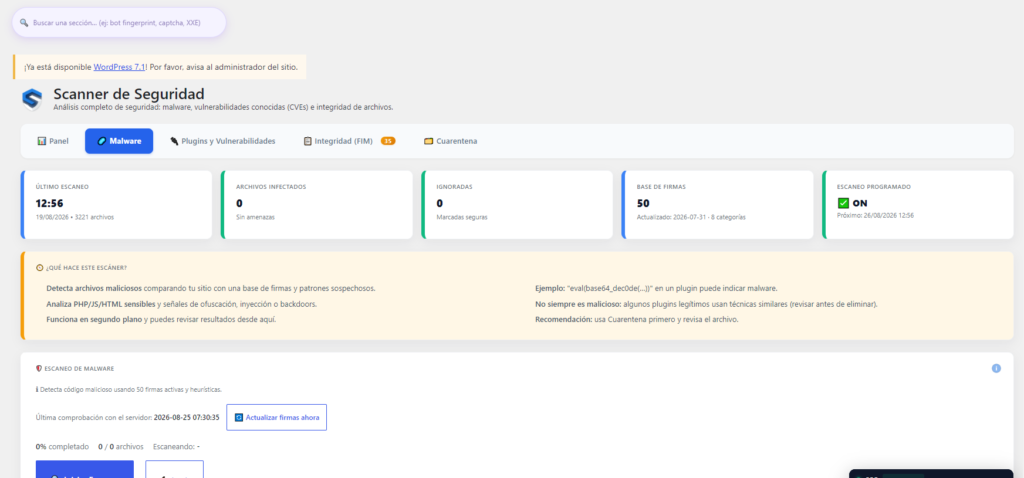
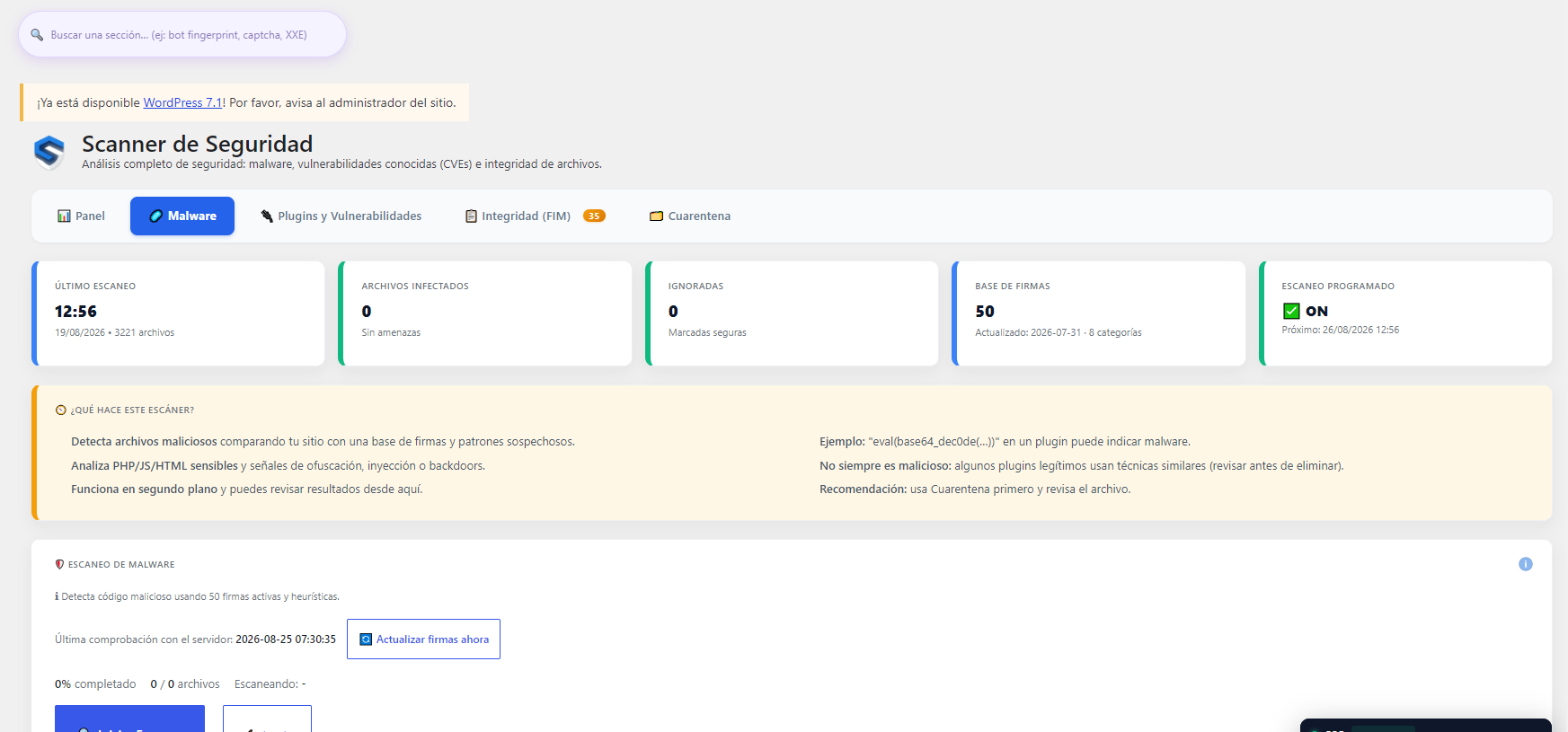
A full scan of the site, not just the URLs Google flagged, is the only way to confirm there’s no additional file or injection left for Google to detect on the next review.
Requesting the review and how long it takes to be delisted
From the same “Security Issues” section in Search Console, there’s a button to request a review once the cleanup is confirmed. Response time varies, from a few hours to several days, depending on the severity of what was originally detected.
How to prevent it from happening again
Continuous monitoring vs a one-time scan
Cleaning up once solves today’s problem. Without active protection that keeps watching the site, the same entry vector can be used again tomorrow and restart the whole process from scratch.
Frequently asked questions
How long does it take Google to remove the dangerous-site warning?
After requesting a review in Search Console, it usually takes anywhere from hours to several days, depending on the severity of the infection found.
Do I lose SEO ranking while my site is marked as dangerous?
Yes, a traffic drop is common while the warning lasts, because Chrome and Google Search show warnings that reduce clicks.
Why do I see the warning in English (“this site may be hacked”) even though my site is in another language?
That’s the standard text Google Search Console/search results use regardless of the affected site’s language.