
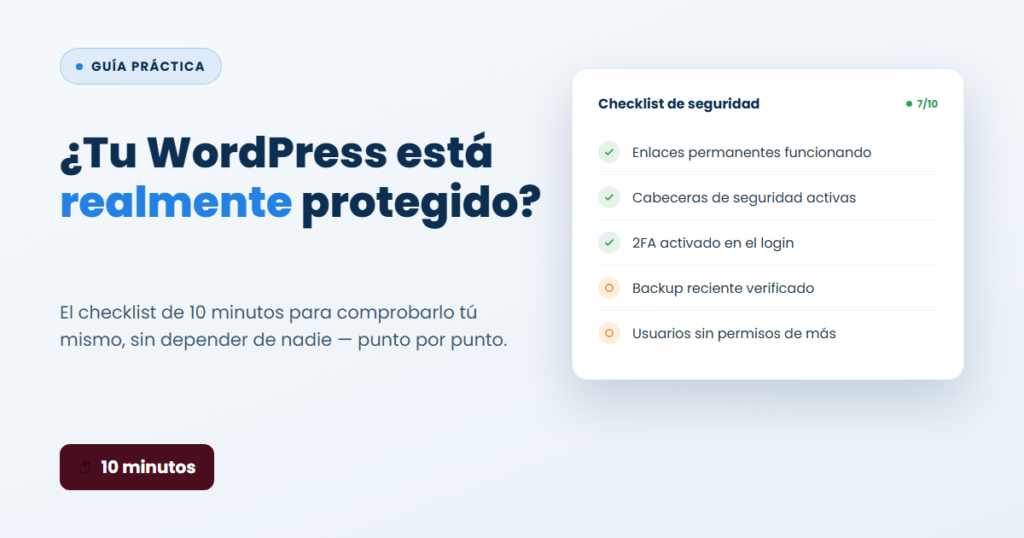
“I have a security plugin installed” isn’t the same as “I’m protected.” A misconfigured plugin, an outdated one, or one with key features accidentally switched off gives you a false sense of security — which is worse than having nothing, because it makes you drop your guard. This checklist is built so you can run it yourself, with no technical background, in about 10 minutes. Go through each point on your own site before assuming it’s protected.
1. Links work across the whole site, not just the homepage (1 min)
Open 3 or 4 random internal pages on your site — not just the homepage. If any of them throws an unexpected 404, something in your permalink or server configuration is broken, and it’s more common than you’d think after an update or a hosting migration.
2. HTTPS across the entire site, no exceptions (1 min)
Check that the padlock shows on every page, not just the homepage. If any page loads resources over HTTP (images, scripts), your browser should warn you about “insecure content” — that’s a real gap, not just a cosmetic one.
3. A recent backup — and, crucially, a restorable one (2 min)
It’s not enough for a backup to exist: it needs to be from the last few days, and you need to know how to restore it without outside help. If your only copy is weeks old or you’ve never actually tested restoring it, in practice you have no backup.
4. 2FA enabled for EVERY administrator (1 min)
A single admin account without two-factor authentication is the easiest way in that exists: all it takes is guessing or leaking one password. Check your list of admin-role users and confirm every single one has 2FA turned on.
5. Security headers are present (1 min)
Headers like X-Frame-Options, X-Content-Type-Options, or Content-Security-Policy aren’t optional anymore: they shut down entire categories of attack (clickjacking, MIME sniffing) almost for free. Any online HTTP header checker will confirm this in seconds.
6. Nobody has more permissions than they need (1 min)
Review your user list. A content editor doesn’t need an administrator role. Every extra admin account is one more account that, if compromised, compromises the entire site.
7. Plugins and themes updated — and no abandonware (1 min)
Open the updates panel. Pay special attention to plugins that haven’t been updated in over a year: if the author has abandoned it, any vulnerability discovered from now on will never get patched.
8. Sensitive files aren’t publicly accessible (1 min)
Try opening your wp-config.php URL, or a plugin’s readme.txt, directly in your browser. You should get an error, never see the actual content. If you can see it, that’s an immediate information leak.
9. Login attempt limiting (30 sec)
Try failing a login 5-6 times in a row with a test account. If it never blocks or slows you down, any script can try thousands of passwords at zero cost.
10. You know what traffic your site gets today (30 sec)
Open your security plugin’s dashboard and check the traffic or blocked-events log for the last 24 hours. If you have no idea how many attack attempts your site gets daily, it’s not that you’re not receiving them — it’s that you’re just not seeing them.
How many did you check off?
If you failed 3 or more points, that’s not an alarm — it’s normal, and it’s exactly why this checklist exists. But you should fix them this week, starting with 2FA and a restorable backup, since those two change the outcome the most when something goes wrong.