
If you’re reading this, something’s wrong: maybe Google is warning you that your site is dangerous, your visitors are telling you it’s redirecting them to strange pages, or you’ve simply spotted an administrator account you don’t recognize. Take a breath. This can be fixed. But the first few minutes matter just as much as the cleanup itself — one wrong first step can turn a simple infection into a much bigger problem.
Before anything else: the 3 mistakes that make a hack worse
Deleting files without a forensic copy first
The first instinct is to delete anything that looks suspicious. Don’t do it yet. Without knowing which file was infected and how, you lose the only real clue to where the attacker got in — and without that clue, it’s easy for them to get back in the same way next week.
Just changing the password and considering the problem closed
If the attacker already has a malicious file uploaded to your server (a backdoor), changing the password does nothing: they don’t need to “come back through the door” — they already have a permanently open window.
Restoring a backup without knowing if it’s infected too
If your backup is from after the infection, restoring it is like cleaning the house and then bringing the dirt back in through the back door. Before restoring any backup, confirm that specific copy is actually clean.
First 15 minutes: containing the damage
Turn on maintenance mode without shutting your site down
You don’t need to disconnect your WordPress entirely. Turning on a maintenance mode hides the site from normal visitors while you work, without losing your own access via FTP or your hosting panel.
Change every password (WordPress, hosting, FTP, database)
All of them, not just the WordPress administrator account. If the attacker got as far as seeing your wp-config.php, they already know your database credentials. Change your hosting account and FTP/SFTP passwords too.
Revoke active sessions and app tokens
Changing your password doesn’t automatically close sessions that were already open. Look for the “log out everywhere else” option in your WordPress user profile, and check whether you have connected apps (mobile apps, integrations) that should be revoked as well.
How to find out exactly what was done to your site
Look for administrator accounts you don’t recognize
Go to Users in your WordPress and check the full list, not just the first page. An administrator account created on a date you don’t recognize is the clearest sign that they already had full control of the site.
Check for recently modified files
If you have SSH access, a simple file listing sorted by recent modification date often points straight to the file they touched. Pay special attention to .php files inside folders that should normally only contain images, like wp-content/uploads.
Scan for known malicious code
A malware scanner compares your files against known patterns and signatures (obfuscated code, functions typically used by backdoors like eval() or base64_decode() used suspiciously) and flags which files deserve a closer look.
Cleaning up without leaving backdoors behind
The difference between removing the symptom and removing the cause
Deleting the file causing the visible redirect isn’t the same as eliminating the backdoor that let the attacker upload it in the first place. If you only treat the symptom, it’s only a matter of time before it comes back, often under a different filename so it isn’t caught the second time.
When to restore a backup and when to clean manually
If you have a confirmed backup from before the infection, restoring it is usually faster and more reliable than cleaning file by file. If you don’t have one, or aren’t sure of its exact date, manual (or assisted) cleaning is the only safe option.
Verify no backdoor is left
After cleaning, scan the whole site again. It’s common for an attacker to leave more than one backdoor just in case — finding and removing just one doesn’t guarantee the site is completely clean.
After cleaning up: what to do so it doesn’t happen again
Update everything (core, plugins, themes)
Most infections get in through a known vulnerability in an outdated plugin, not a sophisticated attack aimed specifically at you. Updating everything — WordPress, plugins and theme — closes the most common door.
Turn on continuous protection, not just a one-off scan
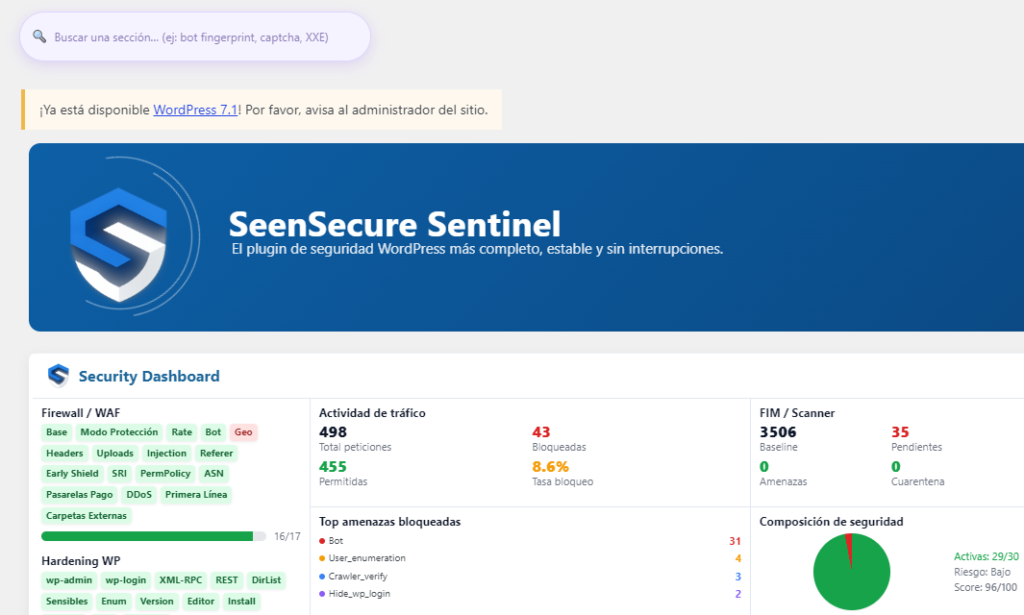
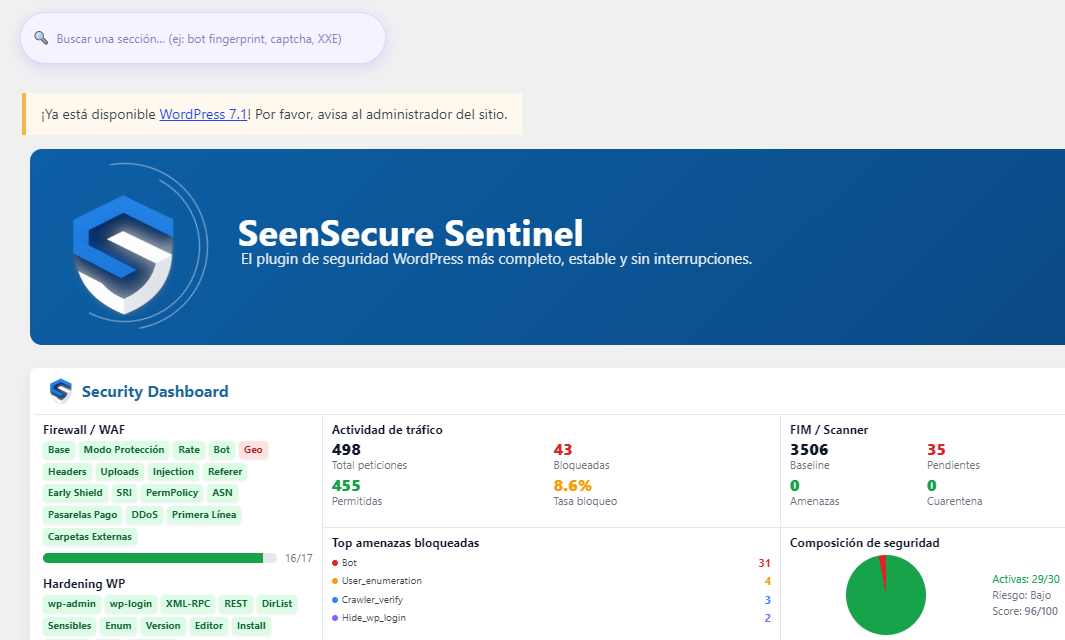
A one-off scan tells you your site is clean right now, but won’t warn you if something changes tomorrow. Real protection combines a scanner that checks your site on a regular basis with a firewall that blocks the kind of requests typically used to upload malicious files again.
Request a review from Google if your site was flagged as dangerous
If Google Search Console flagged your site as dangerous, cleaning the malware isn’t enough on its own — you need to go into the “Security Issues” section and explicitly request a review once you’ve confirmed the site is clean.
Frequently asked questions
Can I clean a hacked WordPress myself without technical knowledge?
For a simple infection, yes, as long as you follow the right order (contain → diagnose → clean → verify). For backdoors or repeat infections, an automated scanner greatly reduces the margin for error of doing it by hand.
How long does it take for Google to stop marking my site as dangerous?
After cleaning up and requesting a review in Search Console, Google usually takes anywhere from a few hours to several days to re-evaluate the site.
Should I notify my users or clients if my WordPress was hacked?
If personal data may have been compromised, yes — and in Spain/the EU there may be a legal requirement to notify the data protection authority within 72 hours if GDPR applies.